How to show estimated delivery dates on Shopify
The single most common question a shopper has, and the one most Shopify product pages refuse to answer, is "when will this actually arrive?". "Ships in 3-5 business days" is not an answer — it is a maths problem handed to someone who was about to buy something. This guide covers the three ways to put a real date on the page, what each one costs you, and the details that make an estimate trustworthy rather than a liability.
·10 min read
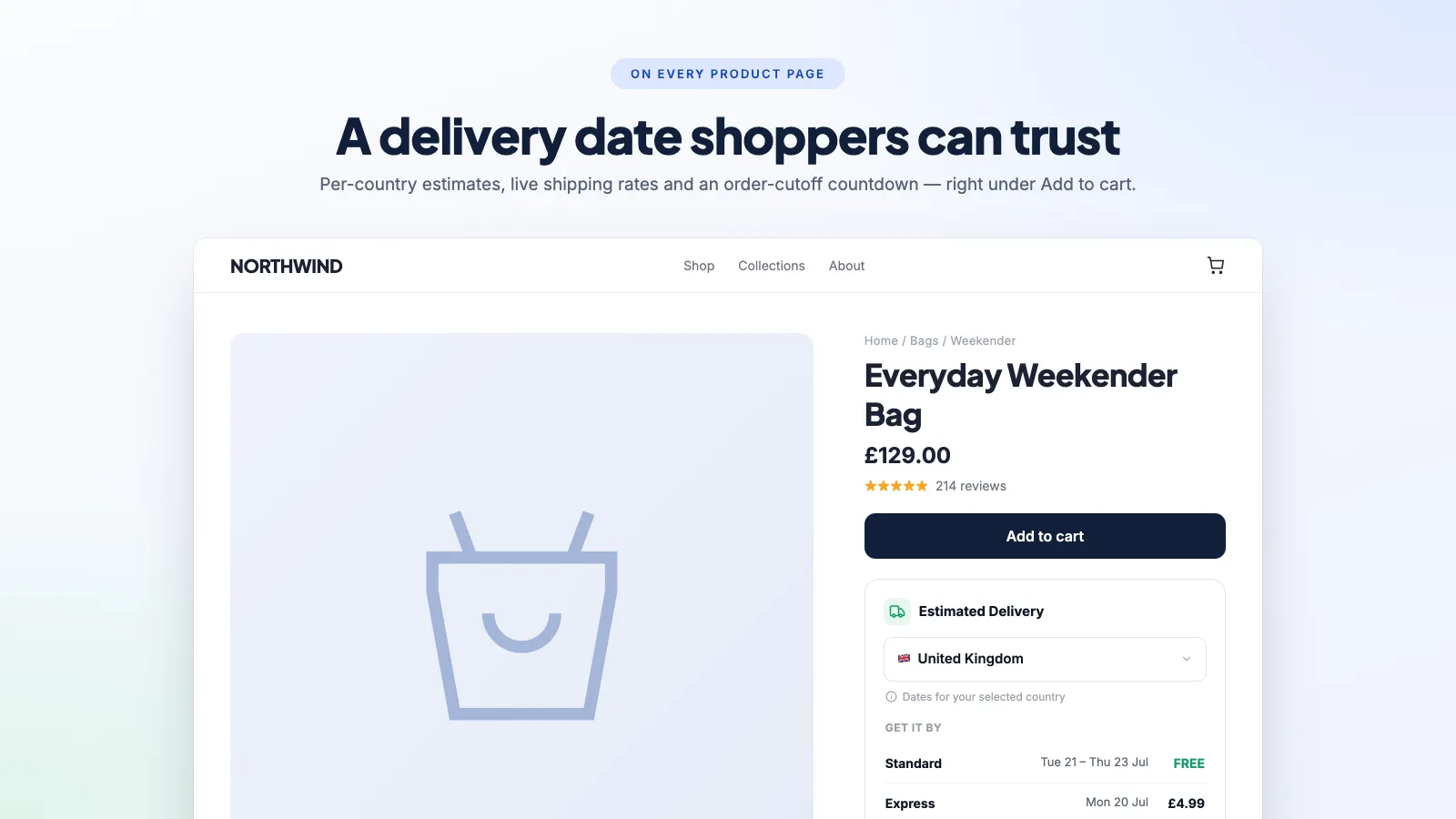
Why a date beats a delivery window
A delivery window asks the shopper to do work. They have to know whether today counts, whether the weekend counts, and whether "ships in" means the same thing as "arrives in". A date removes all of that: "Arrives Thursday 14 August" is understood instantly and needs no interpretation.
It also changes the conversation at the point of hesitation. Unclear or slow delivery is consistently among the top reasons shoppers abandon a cart in the Baymard Institute's checkout research, and the information arrives too late — at checkout, after they have invested effort. Putting it next to the Add to cart button moves the objection to where it can still be answered.
Option 1: static text in the theme
The free route. Add a line to your product template in the theme editor, or a metafield you fill in per product.
- 01
Add the text where it will be seen
Online Store → Themes → Customize → Product template. Add a Text or Custom Liquid block directly beneath the Add to cart button. Above the fold, next to the buying decision — not in a shipping tab nobody opens.
- 02
Use a metafield if it varies by product
Settings → Custom data → Products → add a single-line text metafield such as "Dispatch time". Fill it in per product and reference it in the block, so made-to-order items can say something different from stocked ones.
- 03
Put a reminder in your calendar
This is the part that fails. Static text does not know about Christmas, your supplier being closed, or the courier strike. Someone has to remember to change it, every time.
Good enough for a small catalogue with one shipping speed and one market. It breaks the moment you ship internationally, because the same sentence is now wrong for most of the people reading it.
Option 2: calculate from your shipping profiles
Shopify already knows more than your product page is telling anyone. Your shipping profiles hold the zones and rates, and — if you have set them — transit times per rate. The calculation you actually want is:
“order date + handling time + transit time, skipping weekends, public holidays and your own closed dates.”
Each of those terms hides a decision. Handling time is per product if some items are made to order. Transit time is per destination and per service level. And "skipping weekends" depends on the carrier — some deliver Saturdays, most do not collect on Sundays, and public holidays differ between where you dispatch from and where it lands.
- Cut-off time matters more than anything else. An order at 15:59 and one at 16:01 can be a full day apart, and shoppers notice when a countdown makes that visible.
- The destination country's holidays count, not just yours. A parcel arriving in Germany over Easter does not care about your dispatch calendar.
- Show a range where you genuinely do not know — "Arrives 12-14 August" is honest. A single fabricated date is not more helpful, it is just more wrong.
You can build this in Liquid. It is a couple of hundred lines once you have handled timezones, holidays and per-market rules, and it lives in your theme where the next theme update can break it — which is why most stores end up at option three.
Option 3: a delivery date app
An app takes the calculation, the holiday calendar and the theme integration off you. What separates a good one from the rest is not the widget — it is what happens around the edges.
| What to check | Why it matters |
|---|---|
| Per-country transit times | One global estimate is wrong for every market except the one it was written for. |
| Holiday and closed-date handling | Auto-imported public holidays plus your own shutdown dates, in both the origin and destination country. |
| Order-cutoff countdown | "Order within 4h 12m for Thursday delivery" is the part that converts, because it makes waiting cost something. |
| Theme app extension, not code injection | An app that pastes Liquid into your theme leaves a mess behind when you uninstall it, and breaks on theme updates. |
| Post-purchase pages | Repeating the estimate on the thank-you and order-status pages is what actually cuts "where is my order?" tickets. |
| Shopify Markets support | If you sell internationally, the estimate has to follow the market the shopper is browsing in. |
Our own app, Delivery Date & Rates — ETA, does all six, and shows the shipping cost alongside the date so there is no surprise waiting at checkout. It is $7.99/month with a 14-day free trial.
Where to put the date (and where not to)
- Product page, directly under Add to cart. This is the decision point. Everywhere else is secondary.
- Cart and cart drawer. The second hesitation happens here, particularly on mobile.
- Checkout, if your plan allows it. Shopify Plus stores can use checkout UI extensions; everyone else is limited to what the shipping-rate names say.
- Thank-you and order-status pages. Cheapest support-ticket reduction available to you.
Where not to put it: inside a collapsed "Shipping & Returns" accordion at the bottom of the page. That is where delivery information goes to be ignored, and it is where most themes put it by default.
Does it help SEO?
Not directly — there is no ranking factor for delivery dates. Two indirect effects are real, though.
First, Google's merchant listing structured data supports shipping details, including delivery time, via the shippingDetails property on Product. Populated properly, that can surface delivery information in shopping surfaces and free listings, which is a click-through effect rather than a rankings one.
Second, the behavioural side. A page that answers the shopper's question keeps them on it. Fewer pogo-sticks back to the search results is not a ranking factor you can file a report on, but it is the kind of thing that shows up in your conversion rate immediately.
Frequently asked questions
Does Shopify show estimated delivery dates by default?
No. Shopify holds transit times inside your shipping profiles and can surface them at checkout in rate names, but nothing appears on the product page unless you add it — via theme code or an app.
Should I show a single date or a date range?
Show a range when your carrier data genuinely supports a range, and a single date when you are confident. A range is honest and still far more useful than "3-5 business days"; a single date invented for the sake of looking precise is the worst of the three.
How do I handle made-to-order or pre-order products?
Give those products their own handling time — a per-product metafield, or per-product rules in your app — so a 10-day lead time does not get averaged into everything else. Say "dispatches" rather than "arrives" where the delay is on your side, since that is what you actually control.
Will a delivery date app slow down my product pages?
It depends entirely on how it is built. An app using a theme app extension that renders server-side adds effectively nothing; one that loads a third-party script and then fetches the date over the network adds a visible pop-in and can hurt your Largest Contentful Paint. Check the extension type before installing.
Answer the question before they ask it
Per-country delivery dates, a live order cut-off countdown and real shipping rates, on your product, cart and post-purchase pages. 14-day free trial.
The best Shopify delivery date apps, compared
There are good free options in this category, which changes the question from "which app" to "what do you actually need that free does not do".
How to show delivery dates on Shopify product pages
Getting the date right is half the job. Where it sits on the page, and how it is worded, decides whether anyone acts on it.
Shopify order cut-off times, holidays and closed dates
The single most common cause of a wrong delivery estimate is an app counting Sunday as a working day. Here is the whole set of rules to get right.