How to add product add-ons to a Shopify product page
Add-ons only earn their keep if they are seen at the moment of decision and are obviously relevant to what is being bought. This guide covers the theme-editor steps to get an add-on block onto a Shopify product page, where on the page it belongs, how to choose and price the offers, and the checks to run before you decide whether it worked.
·7 min read
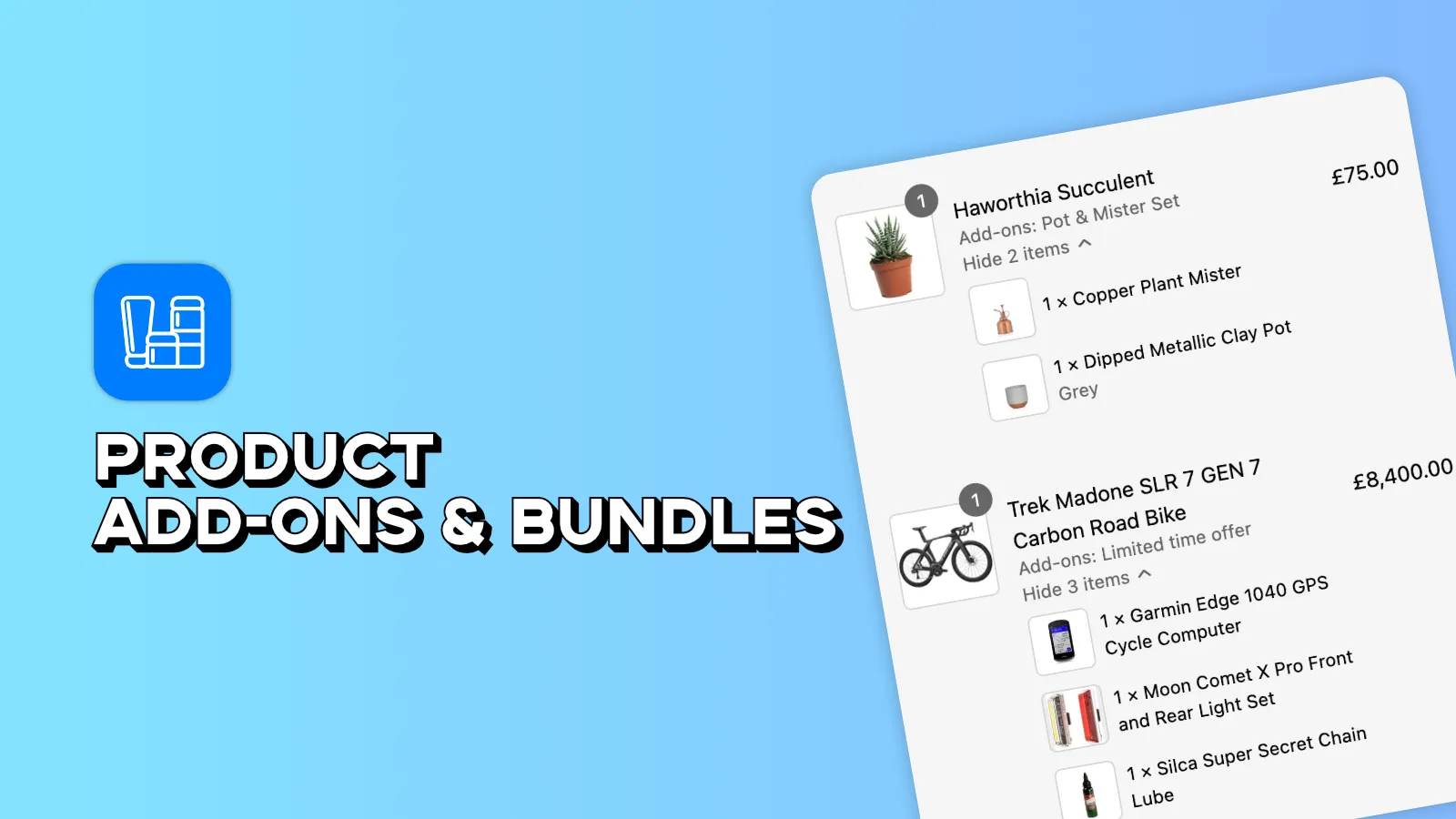
Add the block in the theme editor
On any Online Store 2.0 theme, add-on widgets are app blocks you position yourself — no Liquid, nothing to undo. This assumes you have already picked an app that charges add-ons properly rather than attaching notes; if that distinction is new, read product options vs add-ons first, because it decides which app you should have installed.
- 01
Create the add-on products first
Each add-on should be a real product with its own SKU, price and stock. Set them to be hidden from your catalogue and search so they do not appear as standalone items in collections — they should only ever be reachable through the add-on block.
- 02
Assign add-ons to the products they belong to
Attach each add-on to the specific products or collections it makes sense for. Site-wide add-ons are noise: an engraving option on a candle teaches shoppers to ignore the block everywhere else.
- 03
Open the product template and add the block
Online Store → Themes → Customise, switch the page selector to Products → Default product, then "Add block" inside the product information section. Pick the add-on block from the app list.
- 04
Position it above the Add to cart button
This is the one place add-ons differ from delivery dates. The decision has to be made before the buy button is pressed, so the block goes above it — below, and it is read after the moment it needed to influence.
- 05
Save, then test on a live product page
Open the real storefront rather than the preview, add an add-on, and check it on a phone. Then complete a test order and confirm the add-on appears as its own charged line.
Where it goes, and why
- Directly above the Add to cart button — the strongest position, and the default choice. The offer is in the eyeline at the moment the decision is made.
- Between the variant picker and the buy button — good when the add-on relates to the variant chosen, since the two decisions read as one flow.
- In the cart or a slide-out drawer — works as a second chance, and it is the right place for order-level extras like insurance or delivery upgrade that do not belong to a single product.
- Below the product description — weak. By the time anyone reaches it they have either bought or gone.
- A post-purchase upsell page — a different mechanic entirely, and worth having, but it does not replace the product page block. Post-purchase converts on convenience; the product page converts on relevance.
Choosing and pricing the offers
- Keep the add-on well below the base product price. A rough rule is under a quarter: it should read as a small yes, not a second purchase decision.
- Offer two or three, not eight. Every extra option is a decision, and decisions on a product page cost conversions on the main item.
- Pick things that remove a future annoyance — the spare, the refill, the protective case, the gift wrap that saves an errand. Those convert far better than an unrelated product you would like to shift.
- Never pre-tick a paid extra. It is a dark pattern, it produces chargebacks, and in the UK and EU pre-selected additional payments fall foul of consumer protection rules.
- Price it as a real line item. If the add-on is not charged as its own line, it is invisible to your reporting and someone has to invoice it by hand.
If the extras you have in mind turn out to be several existing products at a combined price rather than accessories, that is a bundle, and the inventory question comes first — covered here.
Before you decide whether it worked
- Complete a real test order with an add-on. Check it appears on the order, on the packing slip, and in your reporting as its own line with its own revenue.
- Check inventory decrements. Add-ons that sell steadily will run out, and one with no stock tracking oversells in silence.
- Run PageSpeed Insights on the product page before and after. This block sits above the buy button, so anything that renders late causes layout shift exactly where it hurts.
- Check a product with no add-ons assigned. It should collapse cleanly rather than leave a gap or an empty heading.
- Give it two full weeks and enough orders to mean something. Most add-on experiments are killed or declared a triumph on a sample size that supports neither conclusion — and watch overall conversion rate as well as AOV, since an add-on block that lifts AOV while suppressing the main purchase is a loss.
Frequently asked questions
Where should add-ons go on a Shopify product page?
Above the Add to cart button. The decision has to happen before the button is pressed, which is the opposite of a delivery estimate — that belongs below it. On mobile keep it to one or two compact offers, because anything above the button pushes the button down.
Do I need to edit theme code to add them?
No, on an Online Store 2.0 theme. Add-on widgets are app blocks you add and drag in the theme editor. Only a vintage theme requires Liquid edits, which is a good reason to move off one.
Should add-on products be visible in my catalogue?
No. Give each one its own SKU, price and stock, then hide it from your catalogue and search so it is only reachable through the add-on block. A gift-wrap product appearing in a collection page looks broken.
How many add-ons should I offer per product?
Two or three. Each additional option is another decision on a page whose job is to sell the main item, and past a handful the block starts costing you conversions on the product itself. Relevance beats volume every time.
Why is my add-on not being charged?
Almost always because the app is using line-item properties — a note attached to a product, which records the request but does not take money. A properly charged add-on either creates its own line item or maps to a variant with its own SKU. Complete a test order and look at the order total; this is the failure that works perfectly in testing.
A block you drag into place
Add-ons assigned in bulk to the products they belong to, charged as real line items with stock tracked, in a theme block that matches your storefront. Free plan available.
Shopify product options vs add-ons: which one do you need?
The most expensive mistake in this category is choosing the wrong kind of app, and only finding out when the accountant asks about the uncharged extras.
The best Shopify add-on and bundle apps, compared
This category mixes three different products under one label. Working out which one you need matters more than which vendor you pick.
Shopify product bundles and add-ons that raise AOV
Bundle, add-on, upsell and cross-sell are four different mechanics. Using the wrong one is why most AOV experiments do nothing.